Skip to content
Cataloging is not Sexy

Cataloging is not Sexy

Tag: Reading

Posted on August 16, 2017August 16, 2017

Converting HTML to EPUB Part 1: Using a Website Converter

Summary

I compared the results for several websites that convert HTML webpage articles into EPUB. None of the websites that I tested provided consistently good results. A couple did provide the consistency of never actually working at all.

HTML to EPUB files

Introduction

Previously, I explored several iOS apps to read the PDF articles that I download/save. Unhappy with some of the formatting problems that come from saving HTML pages as PDFs, I decided to explore saving HTML pages as EPUB instead. There are several ways to do this: use a website converter, use a browser extension or use desktop computer software.

In this post I compare the results from several website converters. As I discussed in the previous blog post referenced above, I retrieve articles (and books) from multiple sources on several different devices. To convert website articles to EPUB using a website converter should be possible on any of the devices I use, though I only tested it on my desktop. Theoretically that means the process is flexible enough for my needs. Unfortunately, (spoiler alert!) based on my desktop testing I am not going to bother with testing the process any of my other devices.

Articles

To compare the output, I chose nine HTML articles, three each from three types of (somewhat arbitrary) categories: website articles, blog posts, and online journal articles. I wanted to the results for a variety of article characteristics, including things like images, code, quotes, references, comments, tables, etc. and different web page styles that would present a variety of formatting challenges.

Website articles

    • Web APIs for non-programmers by Noah Veltman on School of Data
    • XMLHttpRequest and AJAX for PHP programmers by James Kassemi on phpbuilder
    • Why Tech’s Best Minds Are Very Worried About the Internet of Things by Klint Finley on Wired

Blog posts

    • White Librarianship in Blackface: Diversity Initiatives in LIS by April Hathcock on In the Library with the Lead Pipe (Note: This site self-identifies a Journal, but the formatting is more blog-like than journal-like, hence its inclusion in this section.)
    • Critical IoT Reading List – Summaries by Libby Miller at PlanB
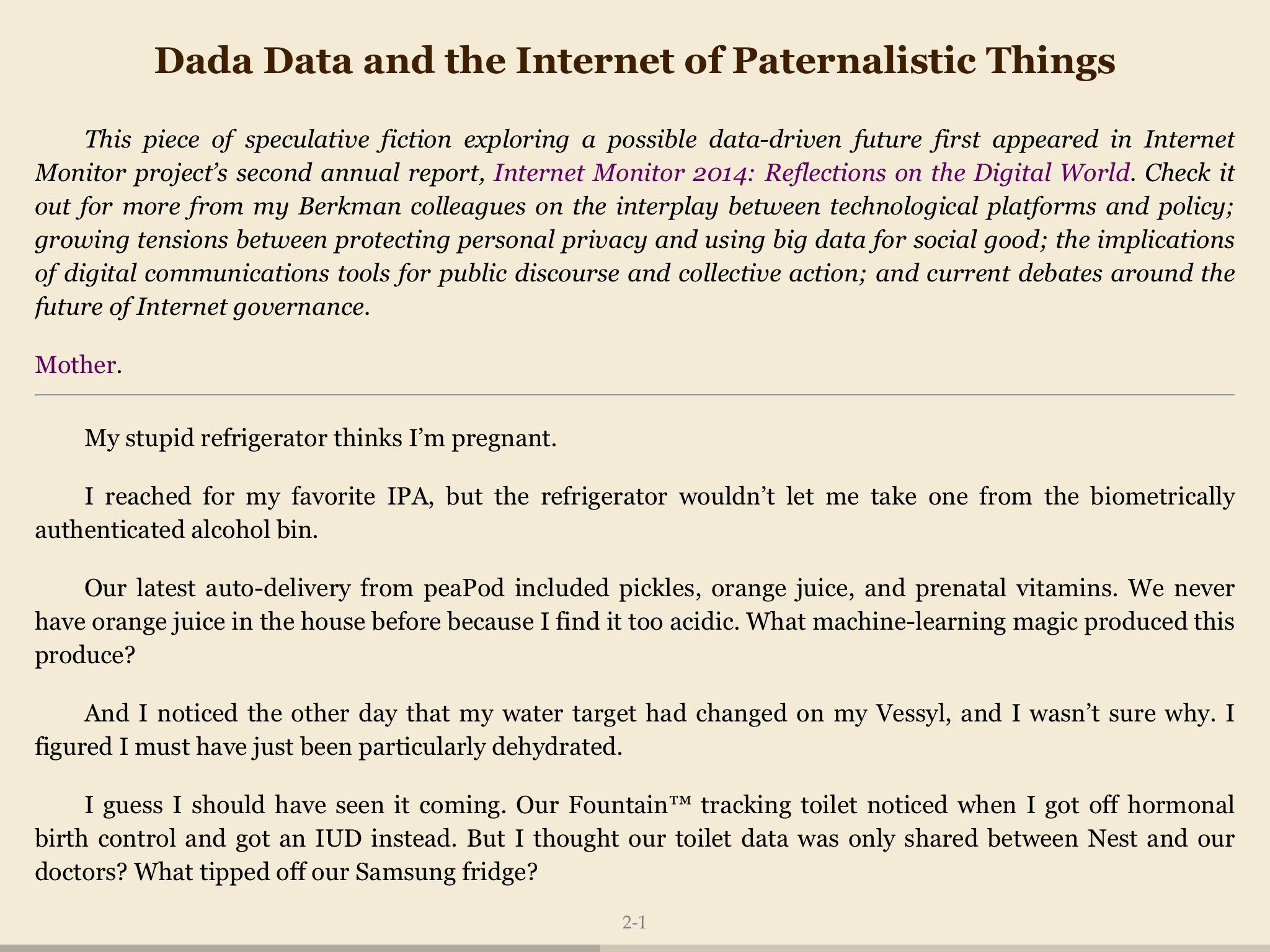
    • Dada Data and the Internet of Paternalistic Things by Sara M. Watson on The Message (Medium)

Journal articles

    • Broken-World Vocabularies by Daniel Lovins and Diane Hillmann on D-Lib Magazine
    • Recommendations for the application of Schema.org to aggregated Cultural Heritage metadata to increase relevance and visibility to search engines: the case of Europeana by Richard Wallis, Antoine Isaac, Valentine Charles, and Hugo Manguinhas on Code4Lib Journal
    • Monuments of cyberspace: Designing the Internet beyond the network framework by Paris Chrysos on First Monday

Website Converters

A web search turned up 10 websites that claimed to convert HTML into EPUB. Five of them I didn’t use:

    • Epubor Online eBook Converter — The small print on this website says that it will convert HTML, but I couldn’t enter a URL and it would not accept an uploaded HTML file.
    • Zamzar — This site requires an email address, so I moved on without even trying it.
    • 2epub — This site seems to be defunct.
    • EPUB bud — This site requires an account, so I moved on without trying it.
    • CloudConvert — Even though HTML to EPUB is listed on the site, it would only allow me to convert to PDF.

The other five websites I found all output at least one result, even if it was meaningless:

    • In-ePub
    • Online Converter
    • Convertio
    • Online-Convert
    • Go4Convert

Comparison Results

Using a Firefox extension (EPUBReader), I was able to open the EPUB files before I downloaded them to Dropbox. My initial impression of the output was not encouraging. However, since I was not planning to read them on my desktop but in an e-reader app on my iPad, I decided to withhold judgement until I had done a more detailed comparison of the files using the e-readers. I compared the resulting EPUB files in three e-readers on my iPad mini: KyBook 2, MapleRead SE, and ShuBook 2M.

I entered the URLs for nine articles into five website converters. In-ePub output a file for five of the nine articles. Online Converter and Online-Convert each output a file for eight of the nine articles. Go4Convert output a file for only one article. Convertio output a file for every single article; unfortunately, every single one of those files was empty.

None of the websites converted all of my test articles. Convertio failed the most often, with exactly zero successful conversions (also ironically making it the most consistent of the five). It simply created empty EPUB files. Online Converter and Online-Convert succeeded the most often with 8 articles each.

The simplest webpages turned into the best-looking EPUB files. But that is not saying much since the simplest webpages also produce the best PDFs. My problem is not the simple pages but the complicated ones. The EPUB converters did not (or could not?) really do any cleanup on the webpages. They did not seem to have any way to determine what on the page was relevant and what was not. Header, footer, and sidebar information often ended up being included in the EPUB file sometimes with and sometimes without the CSS that formatted it on the original webpage. This is perhaps an inherent weakness in trying to convert automatically from one format to another.

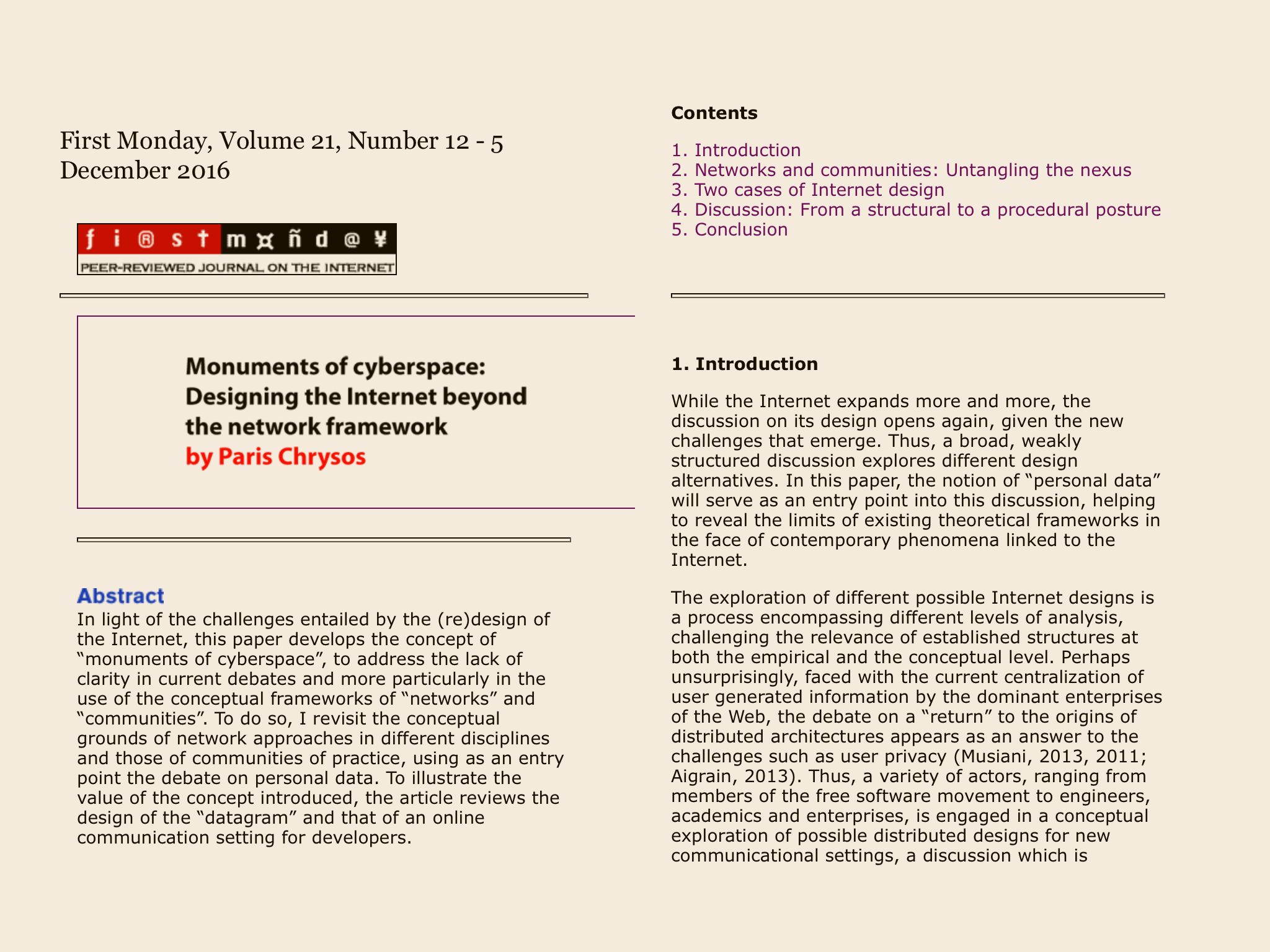
Within those basic parameters, there was some variety in the formatting applied by the converters. Online-Convert seemed to keep the closest appearance to the original webpages. This sometimes meant the articles looked the “best” in the EPUB readers but it also sometimes resulted in them looking the worst. MapleRead in particular had the most trouble with the formatting included by Online-Convert while ShuBook was the most forgiving (or possibly ignored the most webpage formatting?). The differently sourced EPUB files all looked the most similar in ShuBook.
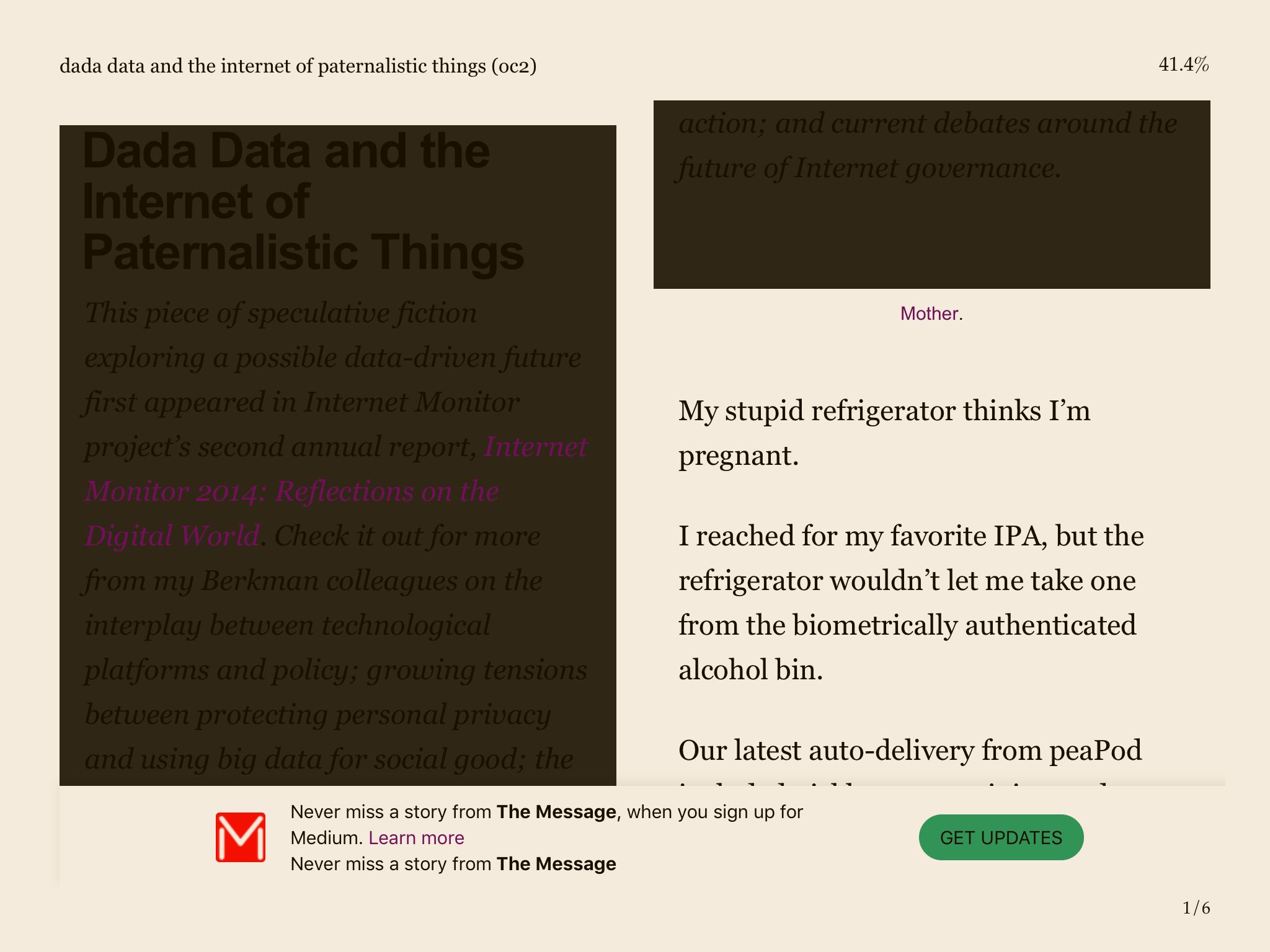
Screenshot: MapleRead's ugly display of Online-Convert EPUB file
Screenshot: MapleRead’s ugly display of Online-Convert EPUB file
Screenshot: MapleRead's nice display of an Online-Convert EPUB file
Screenshot: MapleRead’s nice display of an Online-Convert EPUB file
Screenshot: ShuBook's cleaner display od Online-Convert EPUB file
Screenshot: ShuBook’s cleaner display od Online-Convert EPUB file

Images were the biggest problem. The default settings for the website EPUB converters do not seem to include the images. This is not a problem if the image is purely decorative, but when it is a diagram or figure illustrating something explained in the text, then it is certainly a deal-breaker to not include them. In-ePub and Online Converter did not include images in the converted files while Online-Convert did. The single article that Go4Convert converted did not include any images, so I have no conclusive data one way or the other for this converter.
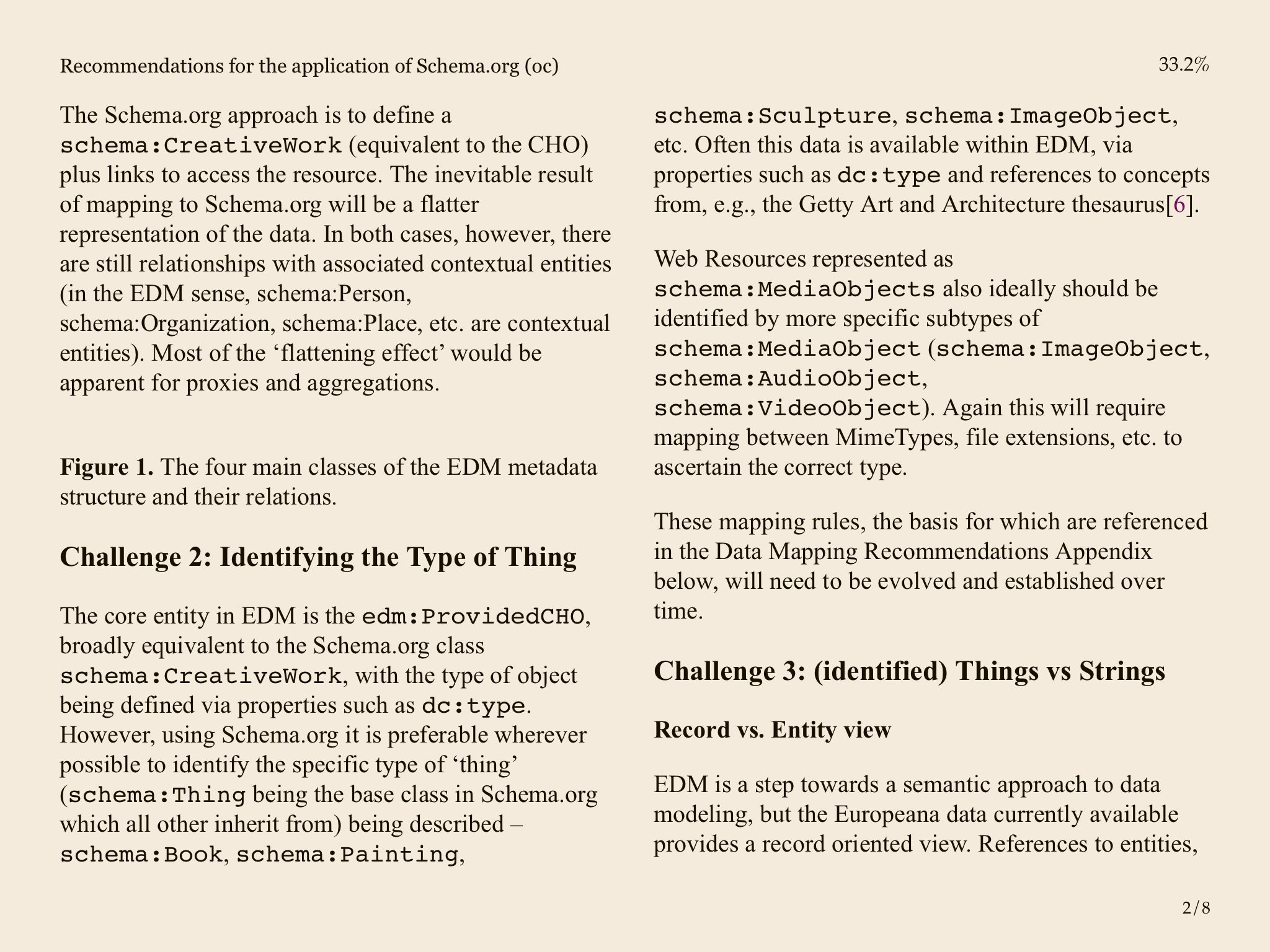
Screenshot: Text includes the caption for Figure 1 but not the image (displayed by MapleRead).

Code generally did not cause any problems. It was easily discernible; set off from the text using a fixed-width font. Unfortunately, when the files output by Online-Convert had formatting conflicts with MapleRead, the code ran off the side of the page rather than wrapping around, making it impossible to see, let alone read. ShuBook code looked the best.
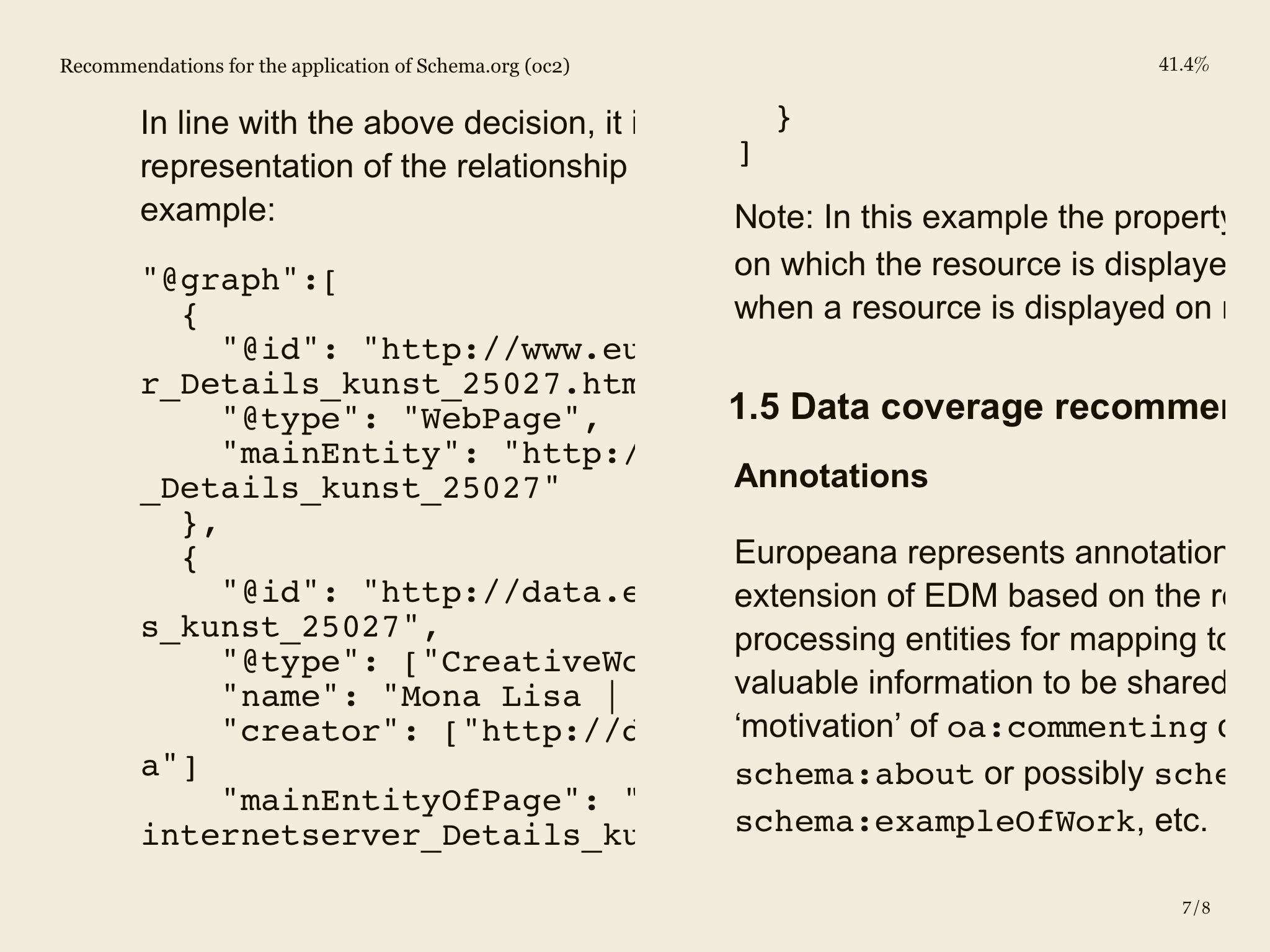
Screenshot: Code does not wrap properly in Online-Convert EPUB displayed by MapleRead

While about half of the webpages I converted allowed comments, only three articles actually had comments. Of those, only one converted EPUB file included the comments. The In the Library with a Lead Pipe article has over 70 comments which were included in the EPUB in all their glory. The Wired article includes comments but hides them by default and the phpbuilder article includes comments, but neither set of comments was included in the converted EPUB file.

Quotes and references generally did not cause any problems for any of the EPUB converters. While the exact formatting varied, both quotes and references were easy to distinguish from the rest of the text.

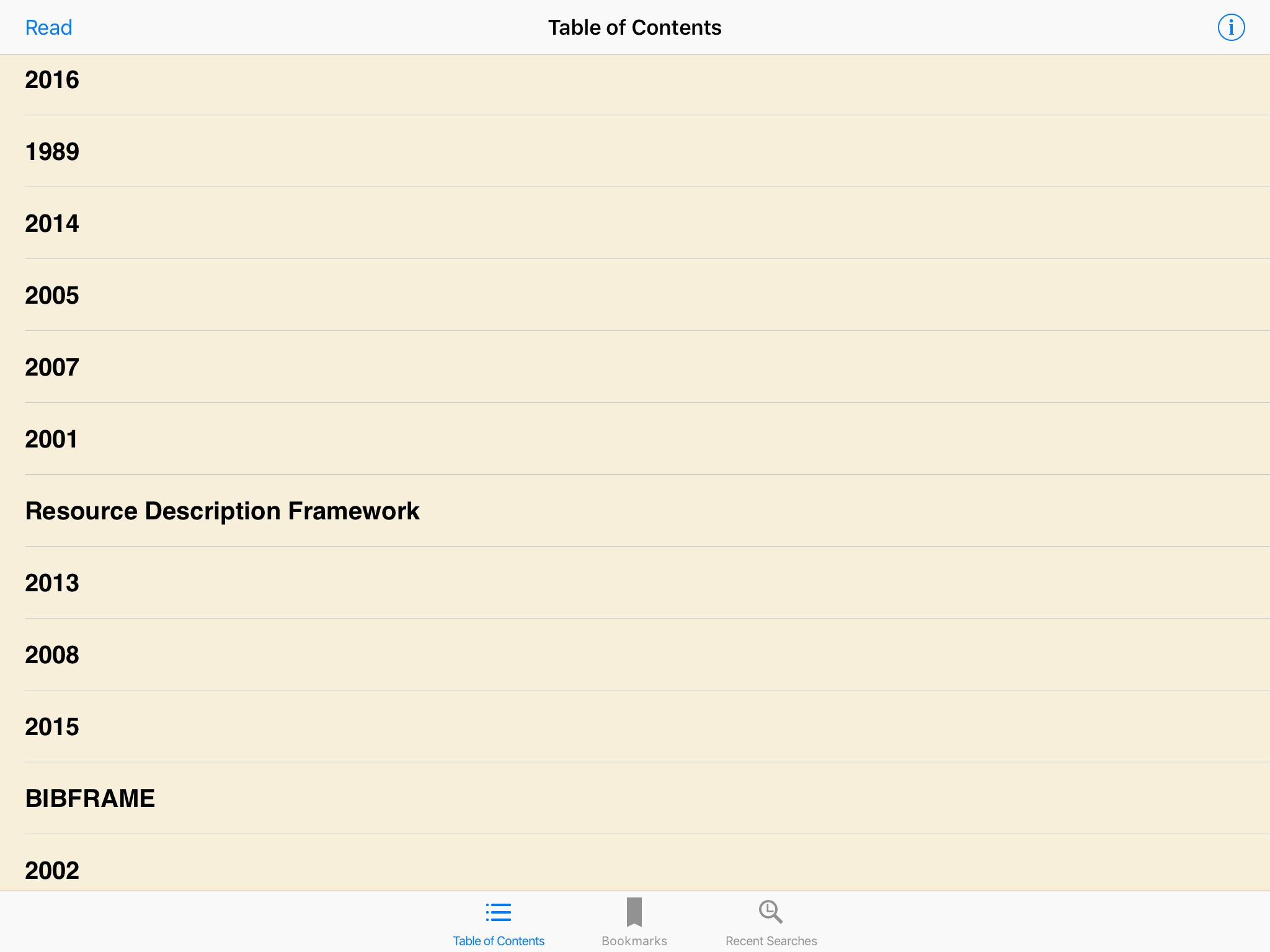
Finally, only one of the articles converted included a useful table of contents. For the rest of the articles, none of the converters produced useful output. In the e-readers, the information displayed varied from nothing to a random-looking list of entries unrelated to the actual sections of the articles. Even the EPUB file that included actual headings from the article also included a bunch of unrelated entries on the list. The output was consistent across converters; articles lacking a table of contents lacked it from all of the converters. The one article with a decent table of contents had the same list of entries from all converters. The apparent gibberish populating the table of contents for other articles was the exact same gibberish from each converter.
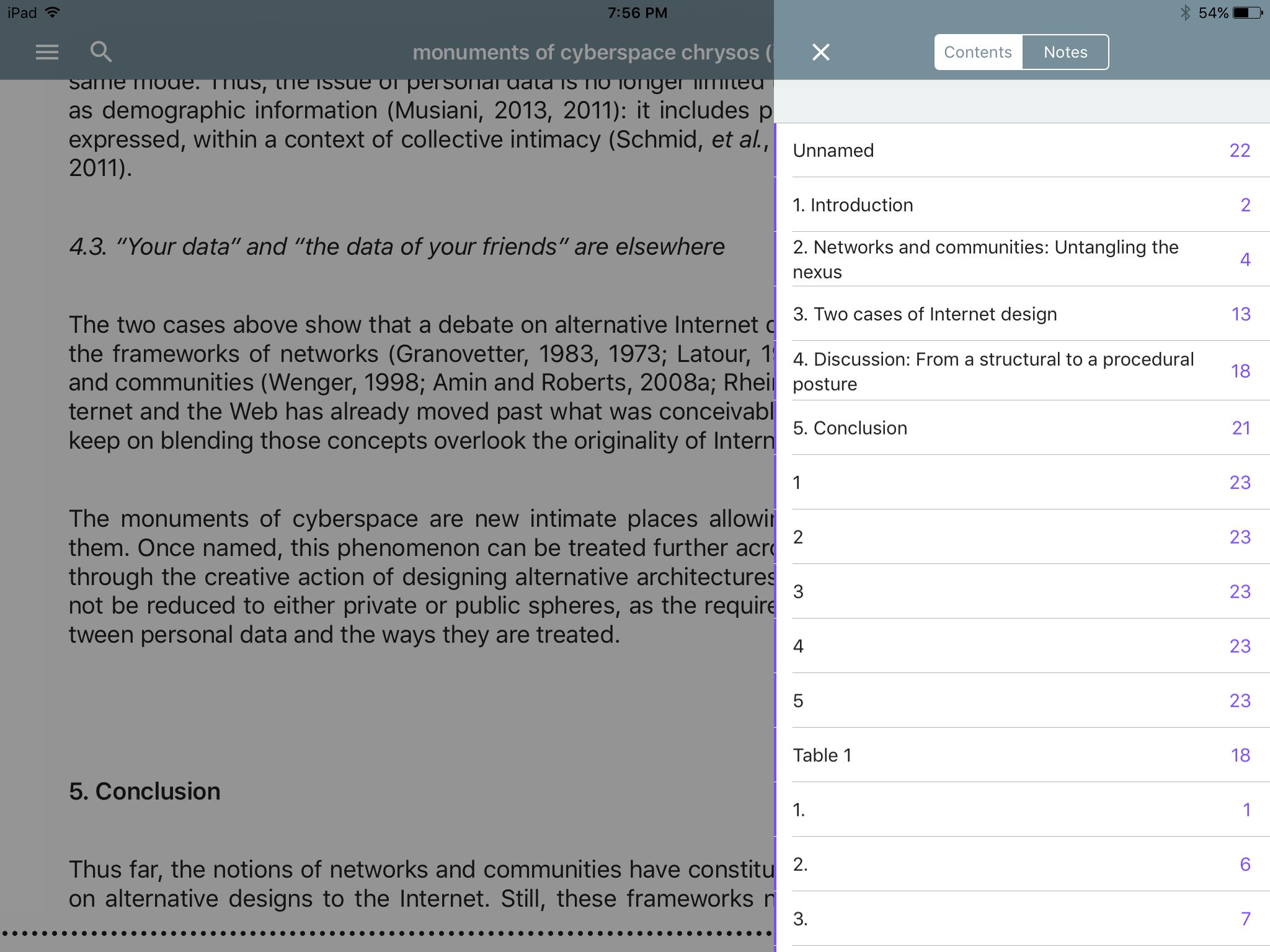
Screenshot: Table of contents with section headers from the article (displayed in Kybook)
Screenshot: Table of contents is all junk (displayed in ShuBook)
Screenshot: Table of contents created from the website header rather than the page content (displayed in MapleRead)

Conclusion

Comparing the EPUB files in my three e-readers confirmed my initial disappointment with the converted files. Converting HTML to EPUB has many of the same problems as converting HTML to PDF. There is such a diversity of ways that webpages are built that there is no one good way to catch them all. Website HTML to EPUB converters do not represent an improvement over converting to PDF for me and, in some cases, produced worse results. I am not going to use this method to convert HTML into EPUB.
Posted on May 12, 2017

Reading PDFs

Summary

I have what seem like straightforward needs. I want to be able to read PDFs that I have saved in my Calibre Library and take notes in them. It turns out that this is not so simple at all. GoodReader and Kindle do not support my local OPDS catalog. ShuBook 2M and the quite expensive (but I’m not bitter) MapleRead SE have sub-optimal note taking abilities. Right now, KyBook 2 works well for me, but my search for the “best” method continues.

Introduction

While the fiction I read largely comes from Amazon via the Kindle and other online publishers as EPUB books, the professional literature and much of the non-fiction I read comes in PDF format. I won’t get into the discussion about loving or hating PDFs. My concern here is that I need to be able to read them and take notes about them in some useful manner.

Currently, I save the PDFs (and EPUBs) temporarily to my Dropbox account and then import them into Calibre on my desktop computer so I can assign metadata and be able to actually find the files again. Calibre makes the metadata and the files available via an OPDS catalog on my local network. It seems like it should be a simple matter to import those files into my e-reader of choice. However, it turns out that to then pull those files onto my iPad mini to read them is, well, not so simple at all.

The apps

GoodReader
Cost: $4.99
I really like this app. It works great with Dropbox, so I can pull in anything that I haven’t already moved out of Dropbox. It connects with many of the cloud services. I can also connect to my computer over my local network. This is a neat feature that I, alas, do not use very often. However, it doesn’t work with the OPDS catalog and that is the deal-breaker for me.

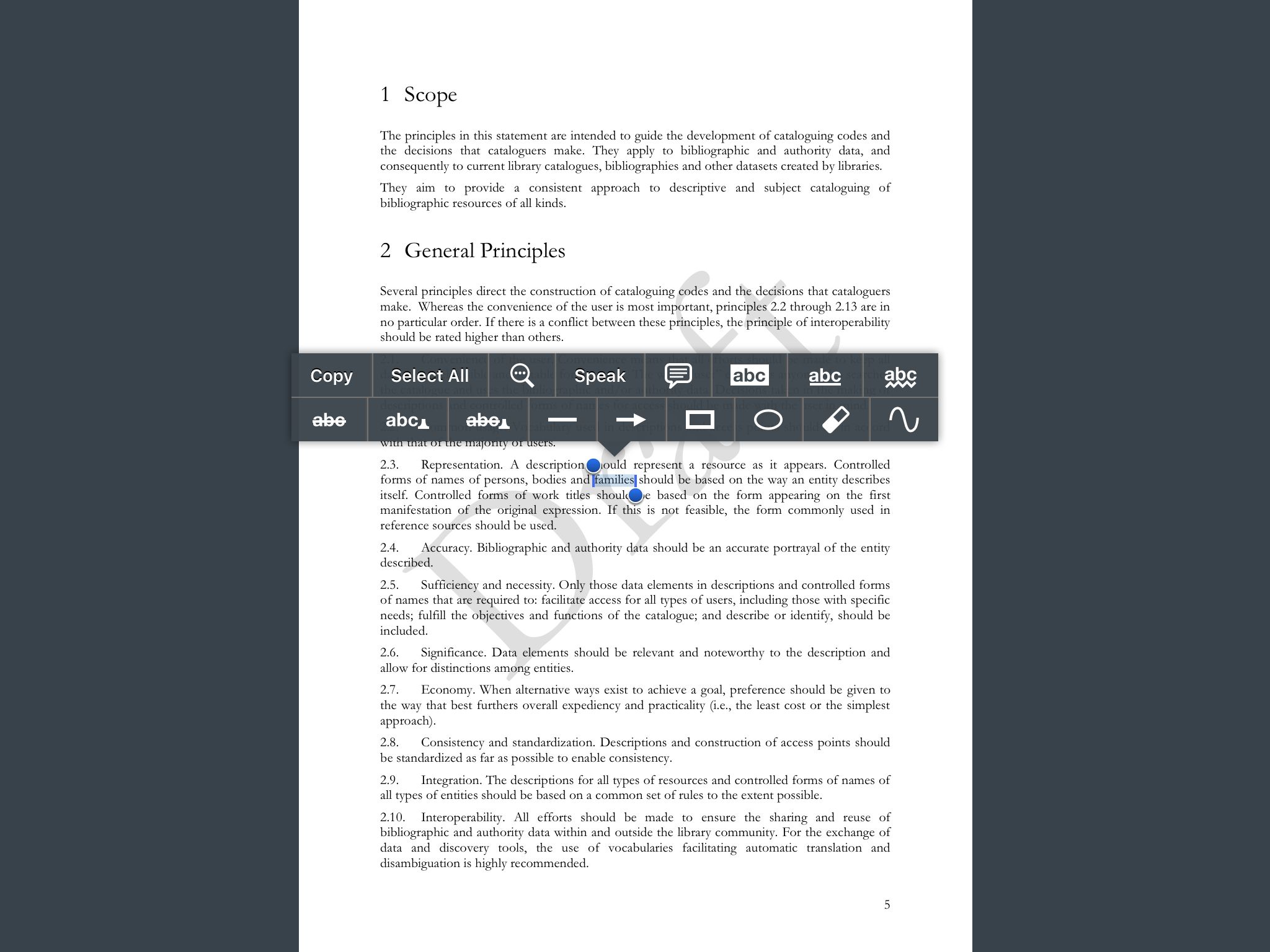
Despite that, I want to emphasize that the note-taking abilities in GoodReader are excellent. There is a plethora of tools; in addition to usual highlighting and commenting, there is underlining, strike-through, shapes, etc. GoodReader also has the unique (among the apps I am comparing here) design of saving notes as part of the document being annotated rather than in a separate notes file. The first time you highlight something, it asks if you want to “save changes to this file or do you want to create a separate copy of a file, and save changes there.” So you can have two versions of your document, one clean and one all marked up with your notes. It seems like GoodReader would be great for editing as well as note taking. I really wish I could use this app, but the lack of OPDS support makes it nearly impossible to create any sort of feasible workflow. Add-on note: This app does not seem to display a table of contents for PDFs.

Editing tools for GoodReader

Kindle
Cost: Free
Alas, this app does not work with my local OPDS catalog. I would have to add another step (or several?) to send all of the files to my kindle account, resulting in duplicated files that lack the metadata I assigned in Calibre. Nope!

ShuBook SE
Cost: no longer available?
This is an older app that I bought several years ago. It works fine with my OPDS catalog. I have mostly used it for reading EPUB books. It doesn’t work so well for PDFs. It doesn’t save my progress, so PDFs always say 0% done and I have to start from the beginning of the file each time I open it. This app has been superseded by ShuBook 2M (and ShuBook 2P). The website provides a useful comparison chart.

ShuBook 2M
Cost: $2.99
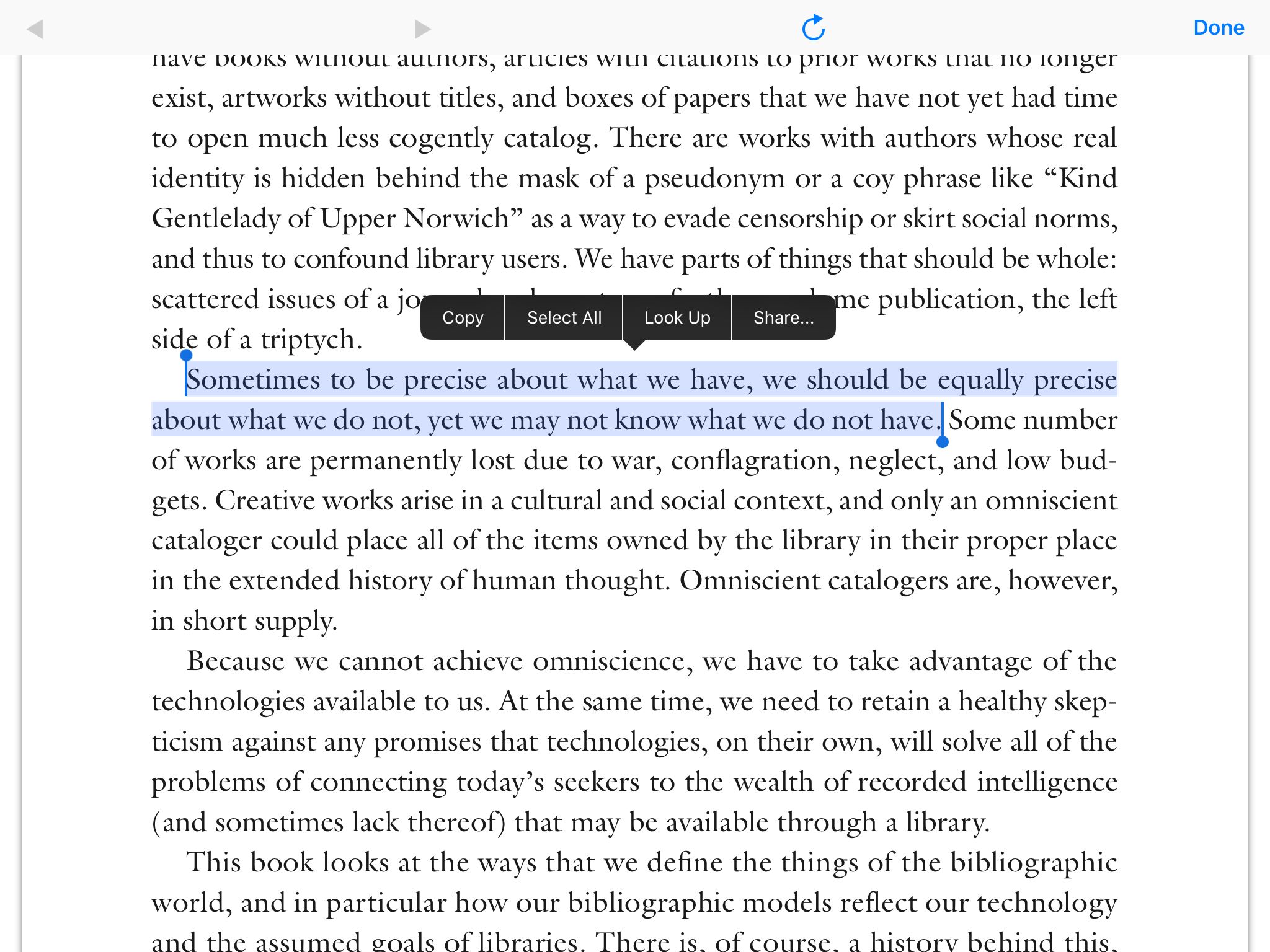
This app is better than the older ShuBook SE. It saves my progress through the PDF. There are no in-app note taking abilities, but I can highlight text and copy/paste it to an outside app (like OneNote, etc.). While that works fine, I find that the process is intrusive enough to interrupt my reading flow. So it’s not my favorite way to take notes. There is also no table of contents for PDFs in this app. I like this app but it works best with lighter reading where I don’t need to take notes.

Editing tools for ShuBook 2M
Editing tools available for ShuBook 2M

MapleRead SE
Cost: $5.99
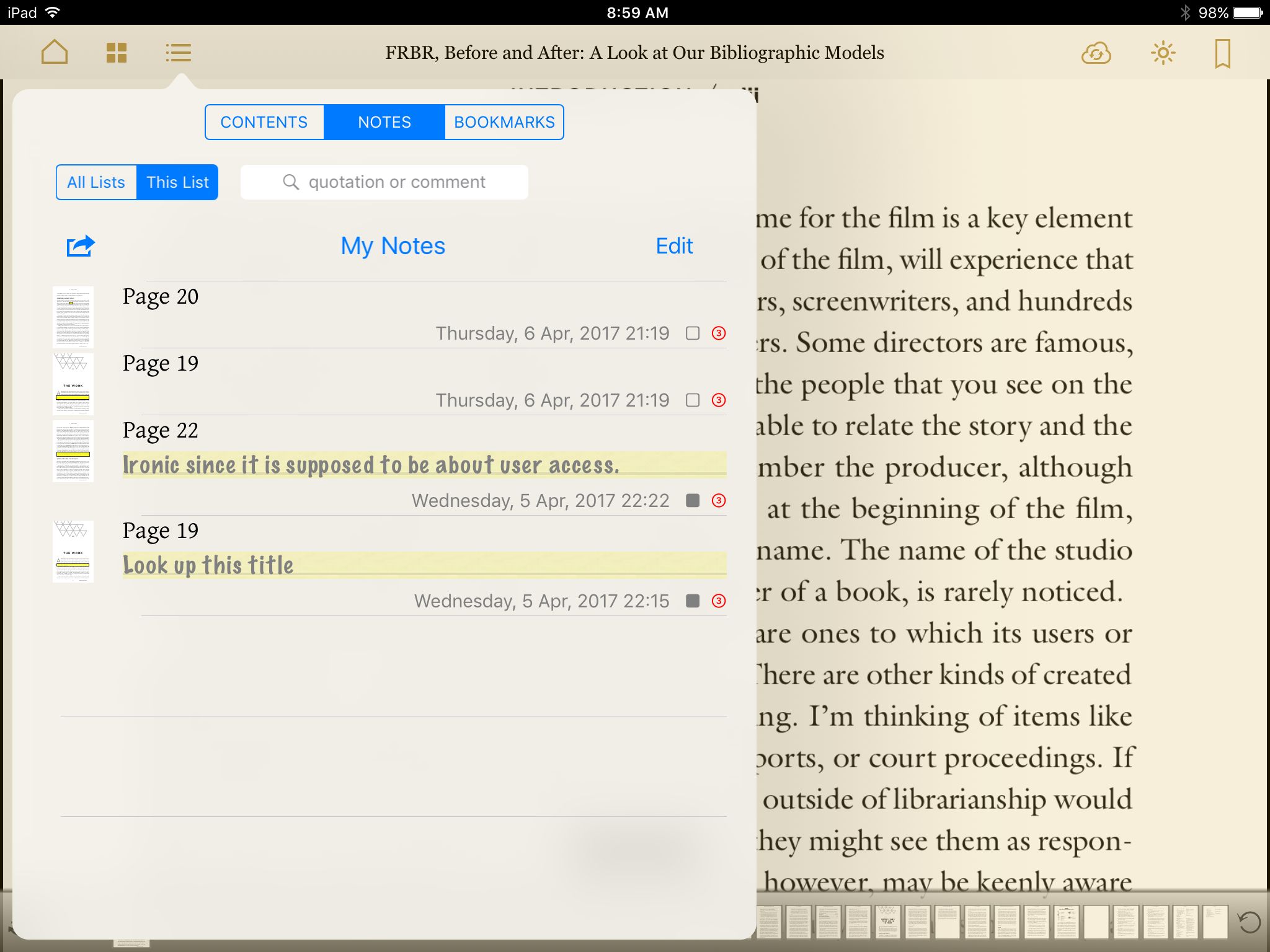
This app was a huge disappointment. It touts its note taking abilities (and charges heavily for them too), however, that apparently only applies to EPUBs and not not to PDFs at all. This app provides the worst experience of the apps I have looked at thus far for reading PDFs. Downloading them from my OPDS catalog worked great but PDFs are images only in this app. The website says “Note-taking including marking (highlighting) as images and commenting with 3 priority levels”(emphasis mine). That means no ability to highlight text at all. No dictionary look up, no text saved to notes, and no copy/paste to an outside app. I can draw a box on the page to mark it but that is it. Looking at my saved notes, I cannot see anything except that I marked something on page X. If I add comments to the marked box, I can see those, but that is not useful if I can’t also see the text that I commented on. Finally, while it has a VERY nice table of contents, there is no apparent way to export notes.

Notes saved in Mapleread

KyBook 2
Cost: Free/$3.99 in app upgrade
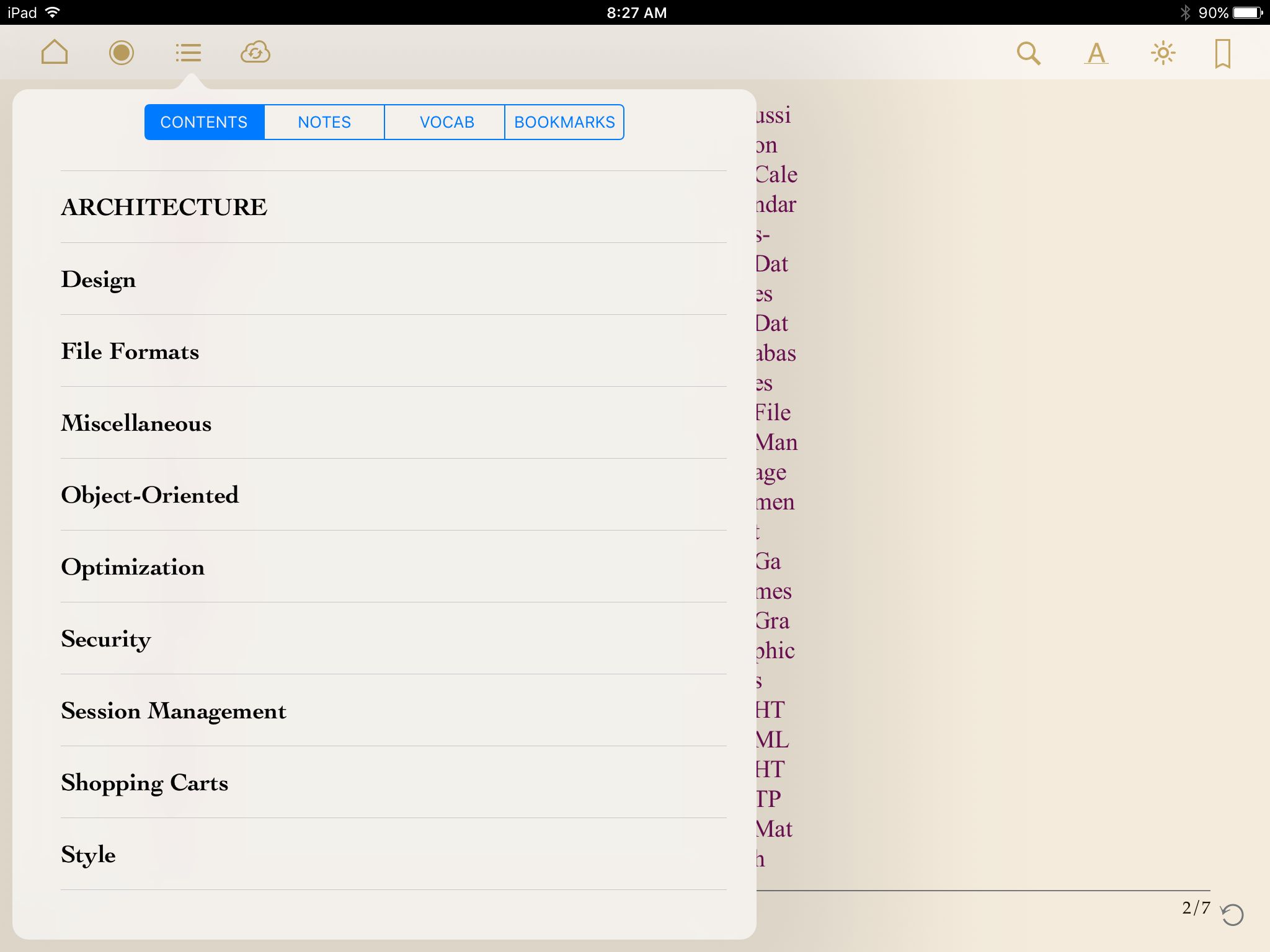
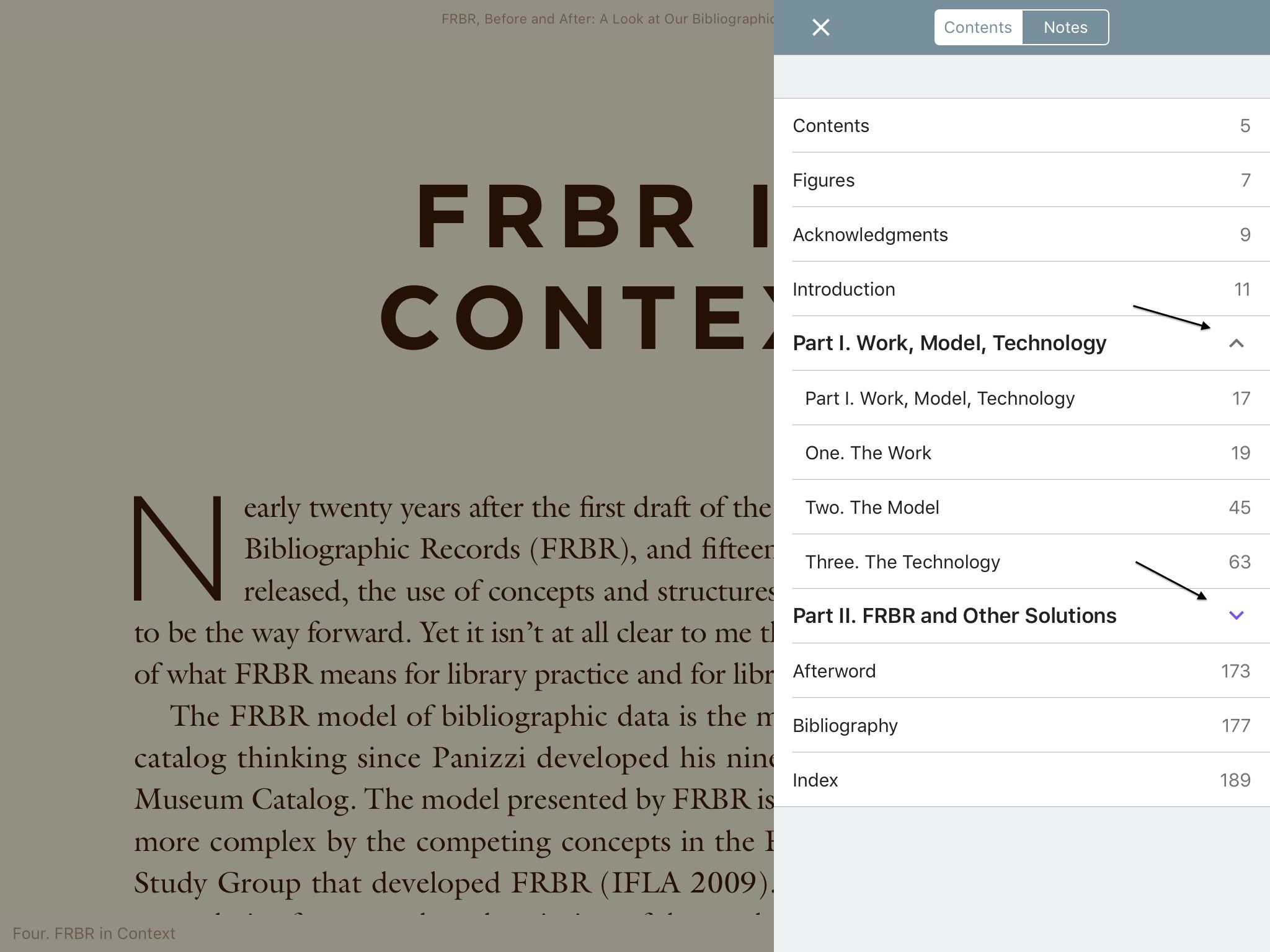
So far, this one has worked the best for me. Downloading from my OPDS catalog is easy. And this is the first app I’ve used that actually remembers my OPDS catalog from one use to the next. All of the other apps have to scan the network each time to rediscover it. Reading progress in PDFs is saved. Note taking is super easy and I can export the notes to an outside app once I am done reading the book. This app also has an interactive table of contents. Currently, this is officially my go-to reading app for PDFs.

Table of contents in KyBook 2
Table of Contents in KyBook 2

Conclusion

This is an ongoing project (as they all are). Thus far, I think I have spent more time hunting for the right methodology than I have actually spent reading. Stupid internet! *Shakes fist angrily* I am collecting [all those cataloging and BIBFRAME] articles and [other non-fiction, like Anatomy! and Economics!] books faster than I can actually read them. Another method that I need to explore is converting PDFs to EPUB. This is easily done in Calibre. I have tried it in the past and was not impressed with the results. However, I will try it again because I am also just not satisfied with the usability of the PDFs. Another interesting idea to try is converting the HTML articles I find into EPUB rather than PDF.

One final thing to note here is that each of the reading apps above has a different interface. Learning how to use one app will definitely not help you to figure out the next one, it might even make it harder to figure out. Comments in the support forums for every single one complain that they are not intuitive. I suspect that “intuitive” in this case is shorthand for “that is not how my brain would organize things.” In any case, I have found that spending the time to click all the buttons (what happens when I tap that icon?) is the best way to figure how the app is organized.

Recent Posts

  • Converting HTML to EPUB Part 1: Using a Website Converter
  • Reading PDFs
  • Digital Music Organization and Archiving
  • Code4lib 2013 NoSQL Pre-Conference Session
  • Reading Notes: A reconsideration of mapping in a semantic world

Recent Comments

  • Virginia Schilling on About Me
  • Riny Goldsmith on About Me

Archives

  • August 2017
  • May 2017
  • August 2015
  • June 2013
  • February 2013
  • December 2012
  • October 2012
  • August 2012
  • July 2012

Categories

  • Cataloging
  • Databases
  • FRBR
  • Linked Data
  • Linked Library Data
  • Linked Open Data
  • Metadata
  • Semantic Web
  • Uncategorized

Meta

  • Log in
  • Entries RSS
  • Comments RSS
  • WordPress.org
Proudly powered by WordPress